Speed Ramp
Bake a variable playback speed into the take - slow-motion impacts,
snappy wind-ups, dramatic landings - from a handful of (frame, speed)
control points. Where Retime to Speed changes the whole clip's
rate, Speed Ramp warps time within the clip and bakes the result into
real frames. Output suffix: *_Ramped.
Panel: Motion → Ramp. Context menu: TakeForge → Speed Ramp...
How it works
Control points define the playback speed along the original timeline, interpolated linearly and held flat past the ends. A dramatic hit:
(0, 1.0) (34, 1.0) (40, 0.2) (48, 1.0)
- normal speed into frame 34, diving to 20% around the impact at frame 40,
back to normal by 48. Every bone track is resampled with fractional-frame
interpolation (a 0.2× section produces 5× the frames), and everything
follows the same warp: float-curve keys (tangents rescaled by the local
speed), notifies, and sync markers land where they belong on the new
timeline.
RootMotion_Speedvalues are rescaled too, so the curve still tells the truth about travel speed.
Root motion slows down with everything else - that's the point: true baked slow motion, montage-ready, no time-dilation tricks at runtime.
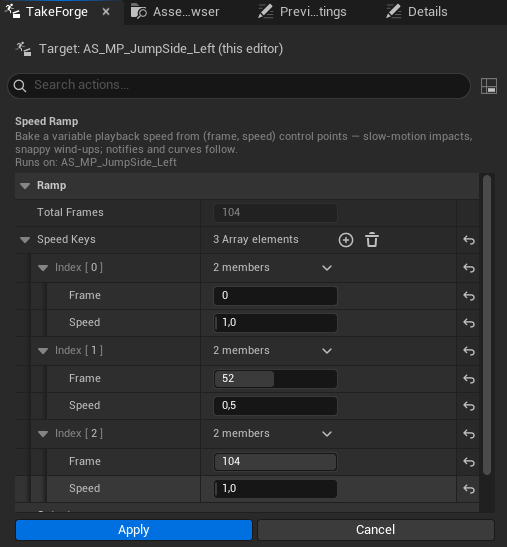
Options
| Option | Meaning |
|---|---|
| Speed Keys | (frame, speed) control points - frame sliders are capped to the clip; speed 0.05–20 |
| Scale To Each Take | Rescale the keys onto each take's own length - on by default when more than one take is selected (see below) |
| Create New Asset | New *_Ramped copy (default) or in-place rewrite |
The dialog pre-fills a ready-to-tweak arc: full speed at the ends, half speed at the clip's middle.
Ramping a batch
Keys are typed in the first take's frames - the dialog's Total Frames. Those only mean the same thing on every take when they are all that long. On a batch, a key at frame 40 lands mid-clip on one take and past the end of a shorter one, where it does nothing at all.
Scale To Each Take rescales the keys by each take's length, so they keep their position rather than their frame number - frame 40 of an 80-frame first take becomes the midpoint of every take. It is on by default for a multi-take selection; untick it to use the frames exactly as typed.
Scripting takes frame numbers as given - scale them per take yourself if you need to.
Slowing a grounded section stretches its contact windows - run Foot Lock after a ramp to keep the planted feet truly still.
Scripting:
ok, err = unreal.TakeForgeLibrary.speed_ramp(seq, [
    unreal.Vector2D(0, 1.0), unreal.Vector2D(40, 0.2), unreal.Vector2D(48, 1.0)])